What makes an image “shoppable”
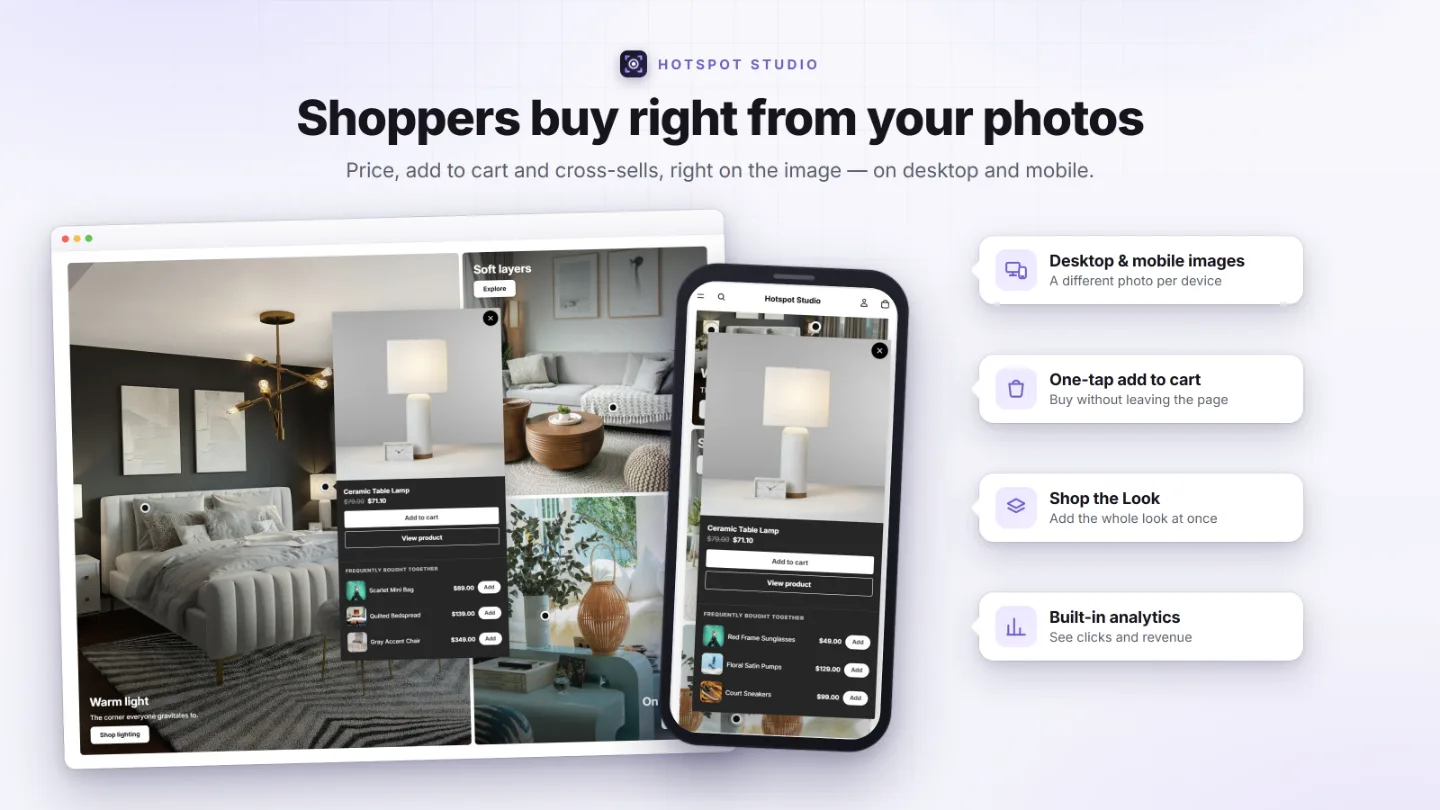
A shoppable image is a photo with interactive hotspots on the products in it. A shopper taps a marker and gets a small popup with the item’s live price, a variant picker and an add-to-cart button. The photo stops being decoration and becomes a point of sale.
The difference between “shoppable” and “clickable” matters more than it sounds. A gallery that merely links each image to a product page interrupts the moment: the shopper leaves the story, loads a new page, and has to decide all over again. A shoppable gallery completes the sale in place — price, variants, stock state, and the add button are all right there on the photo.
Where shoppable images earn their keep
- Product pages — a lifestyle gallery under the buy box shows the product in context and cross-sells everything else in the frame. With per-product assignment it appears on exactly the right pages automatically.
- The home page — a shoppable hero or an editorial strip turns your best campaign photo into a working entrance to the catalog.
- Collection & landing pages — seasonal edits and campaign pages become buyable stories instead of banner-plus-grid.
- A dedicated lookbook page — the classic fashion and home-decor pattern: one page, a season’s worth of styled photos, every product in them buyable. See the Shop the Look guide for the outfit-selling specifics.
Pick the layout for the job, not the trend
Every tile in every layout is a complete hotspot canvas. Try them — then match them to the jobs below.
- Single — one hero image, maximum impact. The home-page banner that finally earns its pixels.
- Grid & Masonry — the lookbook workhorses: a season of photos on one page, masonry when your shots come in mixed aspect ratios.
- Editorial — one lead image plus supporting shots, magazine-style. Ideal for campaign stories and product-page galleries.
- Collage — tight mosaic for dense, energetic edits.
- Carousel — a scroll-snap strip with arrows, dots and an interactive scrollbar, for when horizontal space is all you have.
What’s inside a hotspot that converts
The marker is the easy part. The popup behind it decides whether the gallery sells — it has to behave like a miniature product page, not a tooltip.
- Live price & variants — real-time price (sale price struck through) and a variant picker — synced with your catalog, never hand-typed.
- Honest add-to-cart — adds the chosen variant to the real cart and opens your theme’s drawer; out-of-stock items get a disabled button with your label instead of a CTA that fails.
- Description on your terms — none, the product’s own, custom rich text, or a metafield.
- Smart placement — the popup picks the side with room, points at its dot, and never gets clipped by the viewport.
- More than products — link hotspots can point at collections, pages, articles or URLs; info hotspots carry a title and rich text for styling notes.
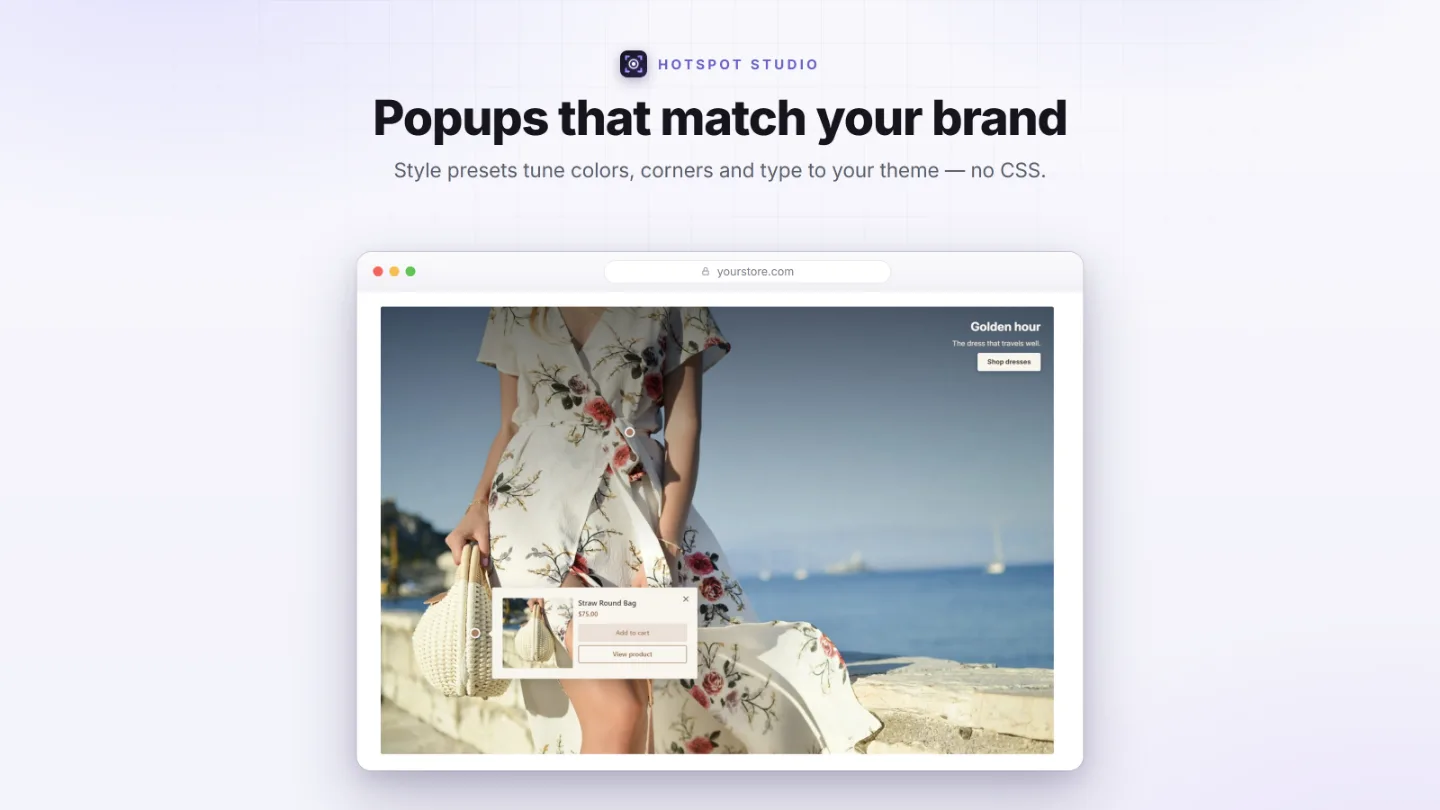
A different image for phones — not a squeezed one
Most of your traffic is mobile, and a wide desktop shot scaled down puts markers on the wrong products. Per-device media is the single most underrated shoppable-image feature.
- Separate desktop and mobile media — image or video per device, with a built-in crop & rotate to cut the phone version in seconds.
- Independent hotspot coordinates — dots sit exactly on the product in both crops, not “roughly nearby”.
- Per-device presentation — hide captions or navigation on phones, set per-device marker sizes.
The gallery can’t cost you the speed score
Shoppers bounce from slow pages, and Shopify measures the impact apps have on your theme. A shoppable gallery is only worth it if it’s effectively free to load.
Where shoppable galleries work hardest
Fashion & apparel
Outfit photos become one-click looks; a seasonal lookbook page replaces the static PDF; per-variant galleries show each colorway styled in its own setting.
Home & decor
A furnished room sells the sofa, the lamp and the rug at once — “get this room” is the strongest cross-sell in the niche, and info hotspots carry styling notes.
Jewelry & accessories
Layered stacks and curated sets are the product — hotspots let shoppers pull each piece out of the composition, check its price, and buy the stack together.
From photo to storefront in three steps
Create
Upload a photo or video — or start from one of 11 templates — and drop hotspots on the products in it. Drag to fine-tune, per device.
Style
Pick a designer preset or tune twelve groups of settings: markers, popups, buttons, typography and more. The live preview matches your storefront exactly.
Publish
Assign products, variants, collections, pages, blog posts or the home page for automatic placement — or add the block anywhere else in the theme editor with a one-click Experience ID.
Shoppable image questions, answered
What is a shoppable image?
A photo with interactive hotspots on the products in it. A shopper taps a marker and gets a popup with the live price, a variant picker and an add-to-cart button — the photo itself becomes a point of sale instead of decoration.
Where can I place shoppable images on my store?
Anywhere sections work: product pages (assigned automatically per product, per variant, or per collection), the home page, collection pages, individual pages you assign a section to, and landing pages via an app block in the theme editor. A dedicated lookbook page is a popular pattern for fashion and home-decor stores.
Will they slow my store down?
A well-built implementation won’t. Hotspot Studio’s core script is about 10 KB with zero dependencies, loads deferred, and hydrates sections lazily as they scroll into view. Feature add-ons load only when the feature is actually enabled, and images lazy-load by default.
Do they work with any theme?
Hotspot Studio ships as a standard Online Store 2.0 app block, so it works with any OS 2.0 theme — Dawn, Horizon, and premium third-party themes alike. Nothing is injected into theme code, and uninstalling leaves no trace.
Can I use video?
Yes — every image slot accepts an image or a video, per device. A short looping clip with hotspots on the products in frame is one of the strongest hero-section patterns.
How do I measure whether a gallery earns money?
Look for revenue attribution, not just click counts. Hotspot Studio tags every add-to-cart made through a gallery, so orders and revenue land on the section that earned them, and on the exact hotspot for adds from a popup, with refunds subtracted automatically.
Shop the Look guide
The outfit-selling specifics: one-click looks, set discounts that only apply from the image, and the conversion checklist.
Best apps compared
An honest, fact-checked comparison of the shoppable-image and lookbook apps on the Shopify App Store.
Shop the Look on the Dawn theme
What Shopify’s classic Dawn theme can do on its own, where it stops, and a five-step no-code setup for Dawn stores.
Your photos are ready. Make them sellable.
Free plan included, paid plans from $7.99/mo with a 7-day trial — publish your first shoppable gallery today.