Your first shoppable image, step by step
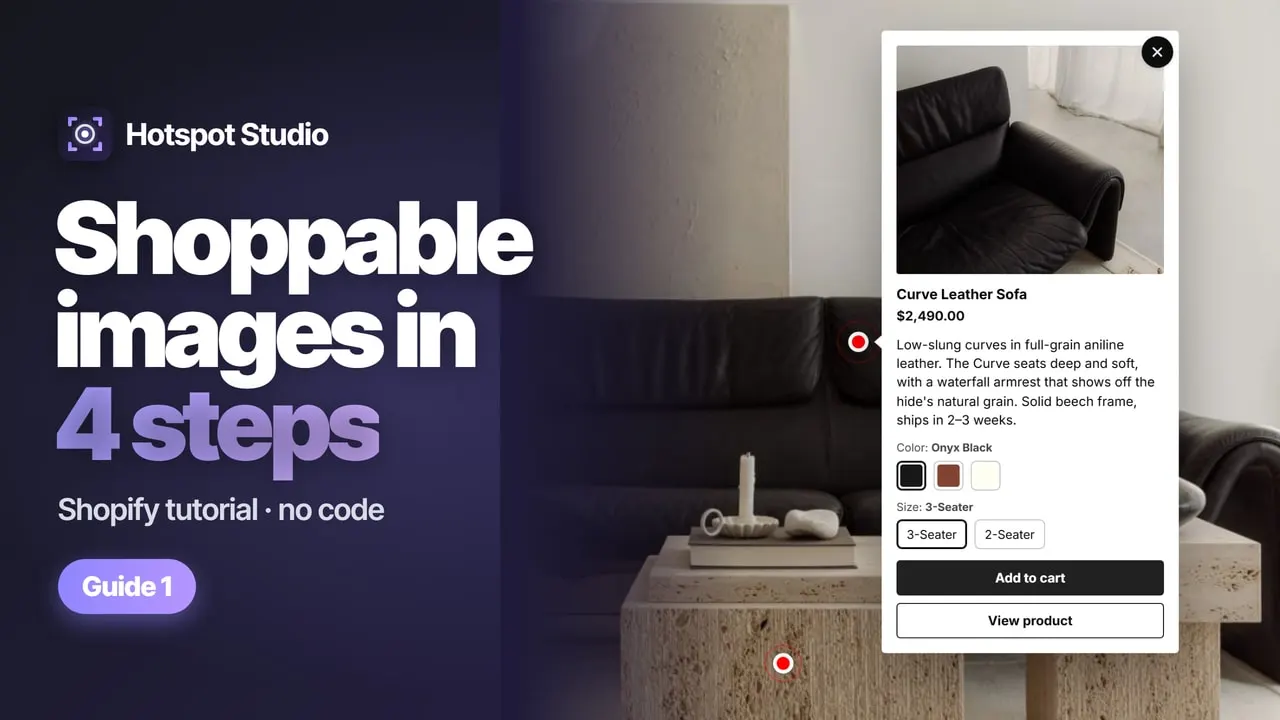
Turn any photo into a shoppable image: product hotspots with the price, options and Add to cart, right on the picture. Create a section, place the hotspots, add a phone crop, choose where it shows and add the block to your theme.
- Place product hotspots and pick each product from your catalog
- Add a separate phone image and crop it; the pins move with the crop
- Add the app block to your theme from the “Theme block missing” notice, once
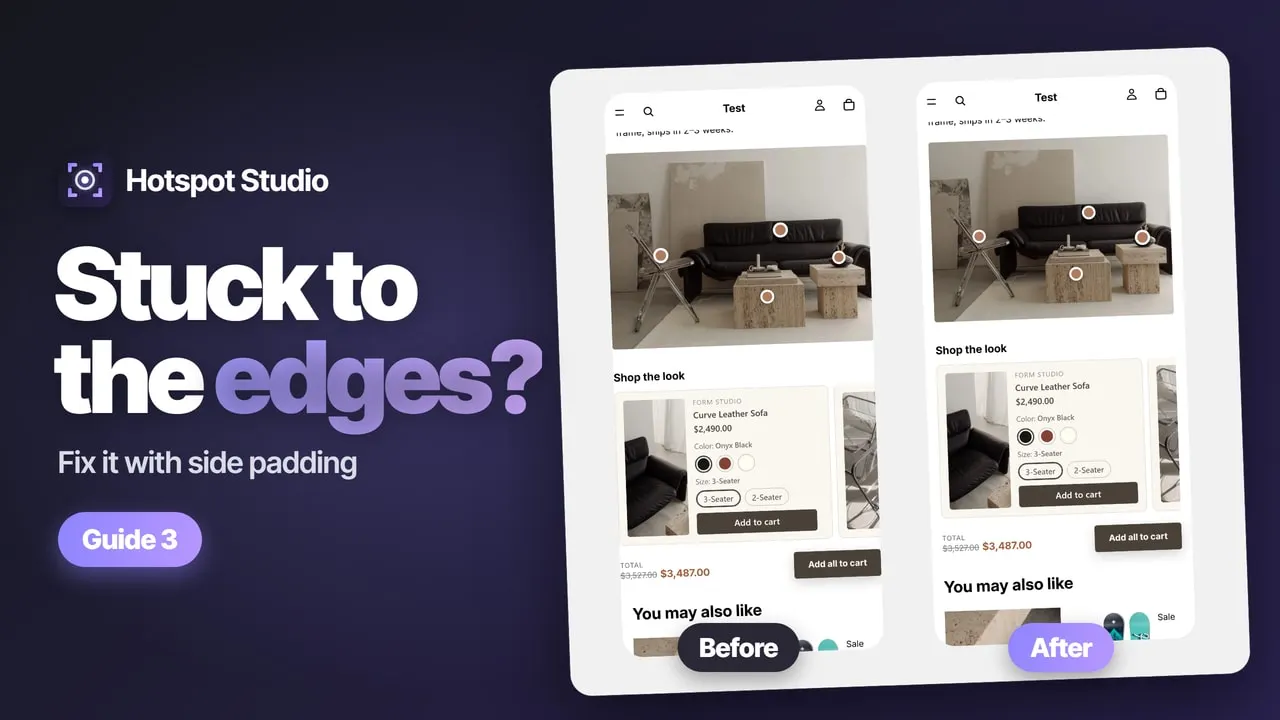
- Set the block’s top and bottom padding in the theme editor
Read the transcript
0:00 · Create a section Let’s turn a photo into a shoppable image, step by step. Four steps, no code. Open Hotspot Studio in your Shopify admin, and click Create section. You get a new, unsaved section. Nothing goes live until you publish. Give it a name you’ll recognize. Then add a photo. Upload one, or pick one from your store’s files. Room shots with a few clear products work best.
0:29 · Place hotspots Click a product in your photo. A small menu asks what the hotspot is: a product, a collection, a note, or a link. Choose Product, then pick it from your catalog. Search for it, tick the box, and click Add. The pin lands where you clicked, and the live preview shows the popup your shoppers will see. Add a pin for every product in the photo. Each pin opens its own product, with its price and options. To fine-tune a spot, drag the pin, or nudge it with your arrow keys. Phones get their own pin positions, so check the Mobile preview too. Next, let’s choose what the popup shows.
1:15 · Popup details Click a pin to edit it. Tick View product, and shoppers get a button to the full product page. Then choose a description. Product description uses the text you already wrote in Shopify. The live preview shows exactly what your shoppers will see.
1:35 · Phone image & crop Phones show the same photo, unless you add one just for them. Under Media, add a phone image. Here, it’s the same room photo. Click Crop, pick a square, and drag the frame to keep the products in view. Apply crop saves it as a new image. The original stays in your files. Your pins move with the crop, so they stay on the products. Check them in the Mobile preview.
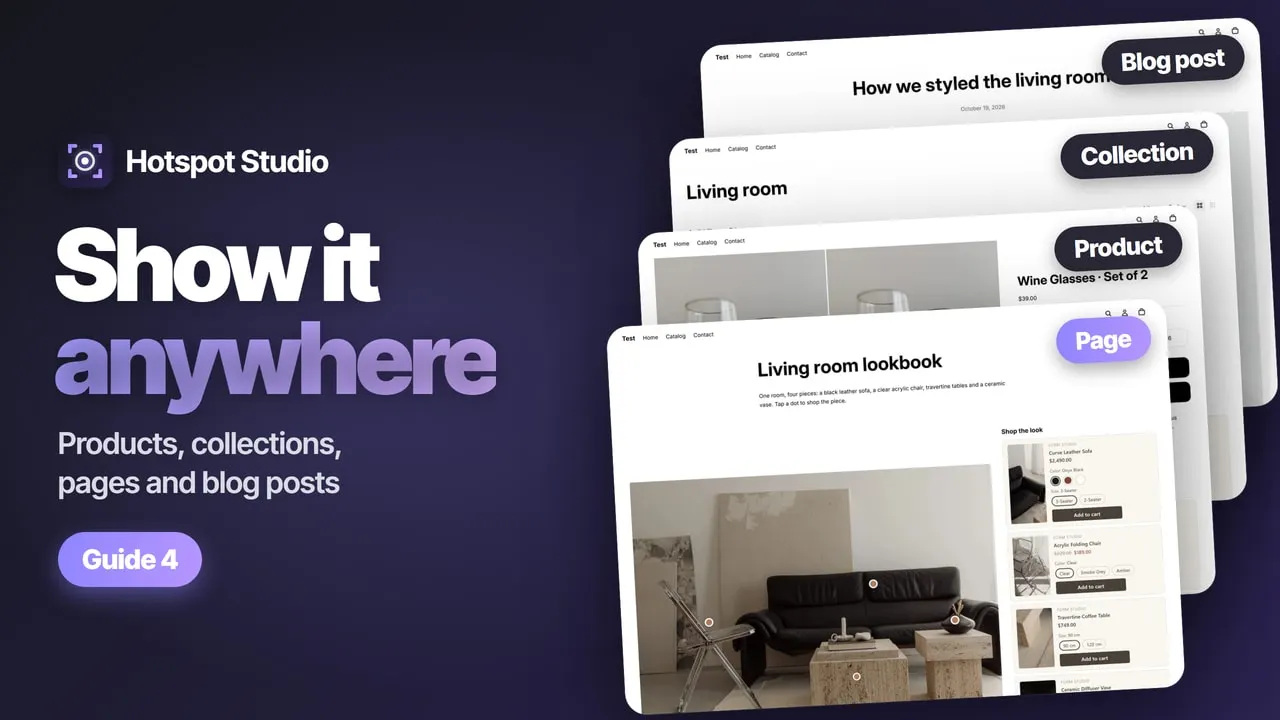
2:01 · Choose where it shows Now save the section. Saving unlocks assigning and publishing. Next, choose where it shows. Collections, pages, blog posts and the home page are all in this list. For product pages, click Assign products, find the product, tick the box, and click Add.
2:17 · Publish The section appears on those product pages automatically. Click Publish now. Your section is published. The first time, there’s one more step.
2:33 · Add to theme If your theme doesn’t have the Hotspot Studio block yet, this yellow notice tells you. Click Add block in theme editor. The theme editor opens on your product, with the block already added. It lands at the bottom of the page. Drag it up, under the product details. There’s nothing to fill in. The block shows the section assigned to each product by itself. Need space above or below it? Set Top and Bottom under Padding. Left and right padding is in your style preset, under Layout. Click Save. Back in the app, the notice is gone. You only do this once for your product pages.
3:16 · See it live Open the product page, and there is your shoppable image. Shoppers click a pin to see the product, its description, and the View product button. On phones, they get the square photo you cropped. That is your first shoppable image.