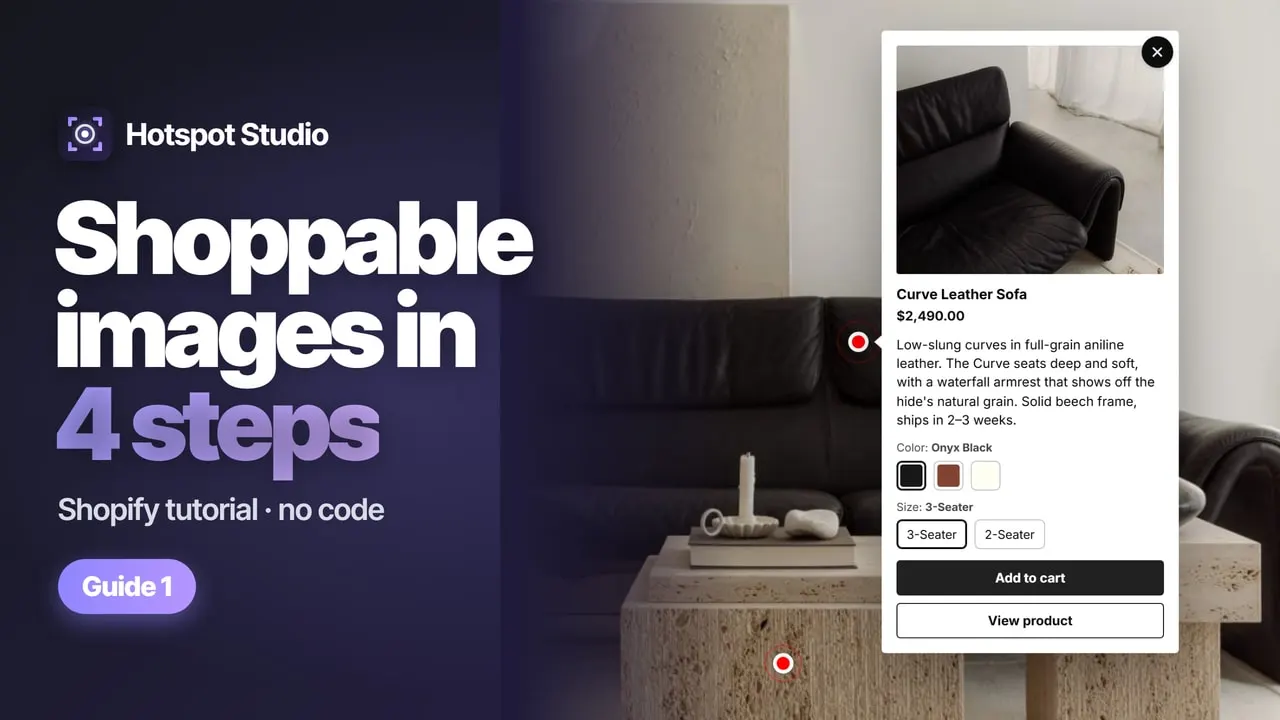
This is a live demo — click the dots. The same popup runs on a Dawn storefront.
What Dawn gives you out of the box
Dawn is Shopify's free reference theme — the first Online Store 2.0 theme, the default on new stores, and the performance benchmark the platform itself points to. For imagery it ships with solid building blocks: Image banner, Image with text, Collage, Slideshow, and Featured product / Featured collection sections.
You can get part of the way to a “look” page by composing those: a full-width lifestyle banner, then a featured-product row with the items from the shot. Plenty of Dawn stores do exactly that, and if your goal is editorial mood rather than conversion, it may be all you need.
Where the built-in sections stop
- The photo itself isn't buyable. No hotspots, no tap-to-see-price — the image is decoration, and the buying happens somewhere below the fold.
- Shoppers leave to buy. Banner buttons link out to product pages; every extra product in the shot costs another round-trip.
- No set incentive. Dawn can't offer a discount for buying the pieces of a look together.
- No proof. You can't see which photo earned which orders, so there's nothing to iterate on.
A real Shop the Look completes the sale inside the image. On Dawn there are two ways to get that: custom development (metafields + Liquid + theme JavaScript — fine if you have a developer on call) or an app block. The rest of this guide is the app path, which takes minutes and doesn't touch Dawn's code.
Shop the Look on Dawn, in five steps
1. Install the app
Install Hotspot Studio from the App Store. The free plan is enough to publish your first shoppable image, and installation adds nothing to Dawn's theme files — the app is a standard Online Store 2.0 block, so uninstalling later leaves no trace either.
2. Create a section and tag the photo
In the app, create a new section and upload your lifestyle shot — or start from a template if you want a working layout to edit instead of a blank canvas. Drag a hotspot onto each product in the photo and pick the matching product from your catalog. Popups get the live price, variant picker and add-to-cart automatically; sold-out items say so instead of failing at the cart.
3. Match Dawn's look — and phones
Pick a style preset and tune colors, corners and type so the popup reads like part of your Dawn color scheme — there's no CSS involved. Two options are worth switching on right away: a separate mobile image (a tighter crop with its own hotspot positions, so dots sit exactly on the products on phones too) and Shop the Look — the one-click buy-the-set button, optionally with a look discount that applies only to items bought from this section.
4. Add the block in Dawn's theme editor
Go to Online Store → Themes → Customize on your Dawn theme. On the page where you want the look — home page, a landing, wherever — click Add section, open the Apps tab and choose Hotspot Studio. Drag it into position like any native Dawn section and hit Save. That's the entire theme-side setup.
5. Put looks on product pages automatically
For product pages, add the block to Dawn's product template once. Then, back in the app, assign each section to products, variants or whole collections — the right look shows up on the right product page by itself, and swapping a product's look never means touching the theme editor again. Variant-level assignment even lets the gallery swap when a shopper picks a different colorway.
Tips that matter on this theme
Don't spend Dawn's speed
Dawn is Shopify's performance benchmark — a heavy widget wastes its head start. Hotspot Studio's core script is ~10 KB and lazy-hydrated, so scores stay where Dawn put them.
Echo your color scheme
Dawn stores live and die by their color schemes. Use a style preset to match popups to yours — light, dark or brand-colored — and keep markers readable on busy photos.
Respect the cart drawer
Dawn's drawer cart is part of its feel. One store-wide setting decides what add-to-cart does: open the drawer, refresh quietly, or nothing — match the rest of your store.
Crop for phones
Dawn's mobile traffic share is as high as anyone's. Upload a tighter mobile image with its own dot positions instead of letting a wide desktop shot shrink.
Sections, not code
Everything here is theme-editor work. If you later switch from Dawn to another OS 2.0 theme, your looks come along — re-add the block and you're done.
Check the numbers weekly
Attribution shows the funnel per image — impressions to orders to revenue. Keep the photo that sells, reshoot the one that doesn't. That habit beats any layout tweak.
Dawn + Shop the Look, answered
Does Dawn have a built-in Shop the Look section?
No. Dawn ships with Image banner, Collage, Image with text and Featured product sections, but none of them put tappable hotspots on a photo or sell from the image. To get a real Shop the Look on Dawn you either build it with custom code or use an Online Store 2.0 app block.
Do I need to edit Dawn's theme code?
No. Hotspot Studio is a standard Online Store 2.0 app block: you add it from the theme editor's Apps tab like any native section. Nothing is injected into Dawn's Liquid, and uninstalling leaves no leftover code.
Will it slow my Dawn store down?
Dawn is Shopify's performance benchmark, and a heavy widget can waste that. Hotspot Studio's core storefront script is about 10 KB and lazy-hydrated — it loads with your page instead of blocking it, so speed scores stay where Dawn put them.
Can the popups match Dawn's color schemes?
Yes. Style presets control the popup's colors, corner radius and type feel without CSS, so you can echo the Dawn color scheme your store uses — and markers stay readable on any photo.
Does add-to-cart open Dawn's cart drawer?
Your choice. A store-wide setting controls what happens after add-to-cart: open the theme's cart drawer, refresh the cart quietly, or do nothing special. Pick what matches the rest of your store.
Does this work on Dawn-based and other OS 2.0 themes?
Yes. Everything in this guide applies to any Online Store 2.0 theme — including the many themes built on Dawn's architecture and Shopify's newer Horizon family. The app block is added the same way from the theme editor.
Shop the Look for Shopify
The theme-agnostic guide: why looks lift average order value and what a converting section needs.
Shoppable image galleries
The wider playbook: six gallery layouts, hotspot anatomy, and where shoppable images work beyond the product page.
Best Shop the Look apps compared
An honest, fact-checked comparison of the Shopify apps in this niche — including where each one is genuinely good.
Make your Dawn store shoppable today
Free plan included, paid plans from $7.99/mo with a 7-day trial — and the photo you already have is enough to start.